Users list
The Connect User Management application allows users with the May add and edit (other) users role to set up and manage (add, edit, disable, reset, and delete) user accounts for the Pearson VUE Testing System applications. If you do not have this role, you can only view existing users in User Management.
During the new site application process, one person at your site receives all user permissions for the Pearson VUE applications, including the May add and edit (other) users role which allows the user to create other user accounts in Site Manager. Unless otherwise instructed, the user with this role must create user accounts for others at the site. Only two users at the site can be assigned the May add and edit (other) users role. This role allows the users to add new users and enter their contact information, reset other user's passwords, edit user roles, disable users, and delete users.
- Logon to the Connect portal.
- Select the User Management menu in the navigation pane. The Users page opens and displays the list of users currently configured for your site.

The first time you log on to Site Manager only the first user and maybe one additional user is listed
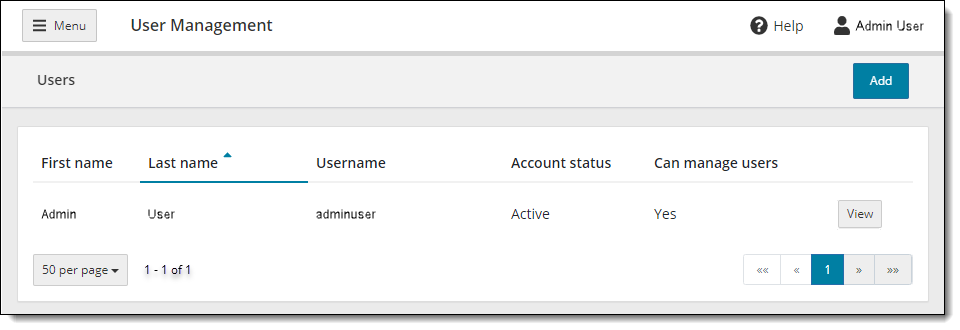
Users list with users added
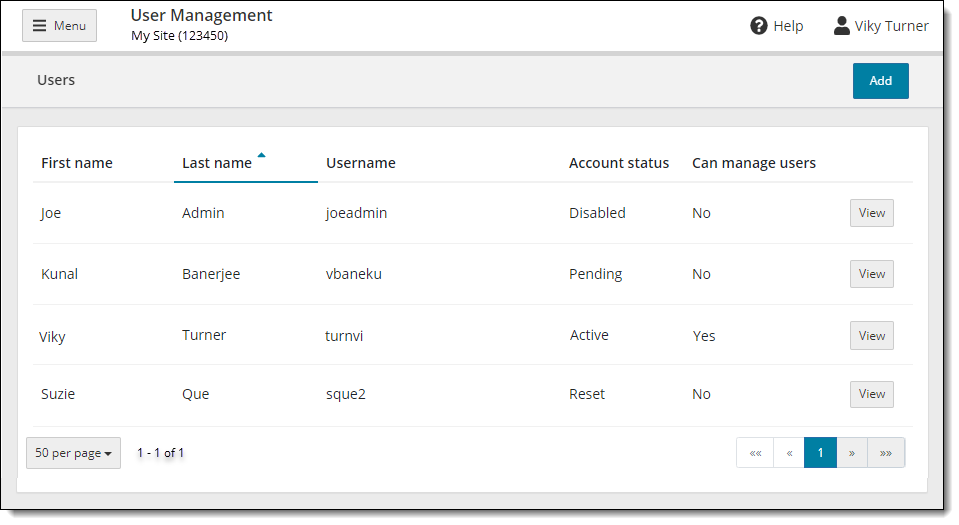
By default, the list of users is sorted by last name. The list includes the following information for each user account.
|
COLUMN |
DESCRIPTION |
|
First name |
First name of the user. |
|
Last name |
Last name of the user. By default, the list is sorted by last name. |
|
Username |
This is the name users enter to log on to all the Pearson VUE Testing System applications to which they are given access. |
|
Account status |
This is the current status of the user account:
|
|
Can manage users |
This column indicates which user has the May add and edit (other) users role. Up to two users per site can be assigned this role.
|
|
View |
The View button allows users to view the user's account:
Only users with the May add and edit (other) users role can edit user accounts. Users with the May reset passwords and disable accounts may disable or reset user accounts. All other users can view the user's account. |
Work with the users list
Sort the users list
The users list can be sorted by first name, last name, and username.
- By default, the users list is sorted in ascending order by Last name. A blue upward pointed triangle is displayed to the right of the column heading.
- Select the desired column heading. The list is sorted in ascending order by the selected column.
- Select the column heading again and the list is sorted in descending order.
Change the number of users displayed on the page
- By default, the number of users displayed on the users list page is 50.
- To change the number of users displayed, select the # per page button
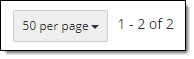 .
. - Select the desired number of users from the list.
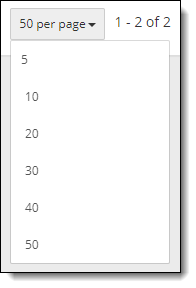
Scroll through the user list pages
- When there are more than 50 site users in User Management, the additional users are displayed on multiple pages. You can scroll through the pages using the page selector
 buttons.
 - Select the desired number to jump to the specific page group. (For example, 1-50, 51-100, etc.)
- Select the First page
 button to jump to the first page in the list.
 - Select the Previous page
 button to move to the previous page in the list.
 - Select the Next page
 button to move to the next page in the list.
 - Select the Last page
 button to move to the last page in the list.
View user account
- Locate the desired user in the list.
- Select the View button for the user.
- See the View User Account topic for details on viewing a user account.
Pearson VUE Proprietary and Confidential