View registrations placed on hold for results
Occasionally, a candidate’s results are placed on hold. This usually occurs automatically. For example, results are placed on hold if a certain type of Case Report or Incident Report has been filed against the registration, if something unusual occurred during the exam (such as the candidate spent a great deal of time on the tutorial), or if an irregularity appeared in the exam results.
Pearson VUE works to resolve all holds as quickly as possible. While the majority of holds are released quickly, some may take longer to resolve. Use the On Hold for Results page to display registrations for which the exam has been completed, but the results have been placed on hold. You can also select candidates on this page to change their information.
- Select On Hold For Results on the Flowchart page.
The On Hold for Results page appears. 
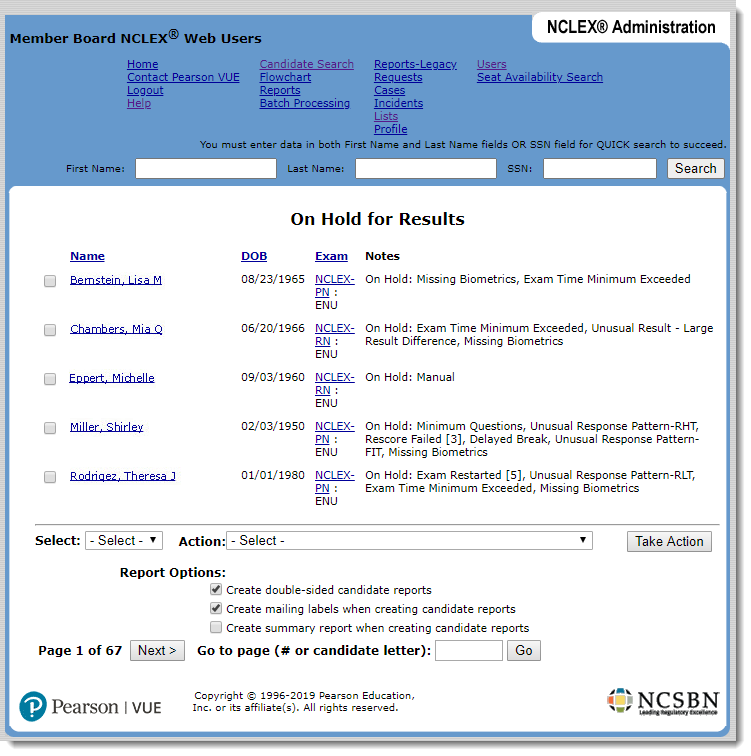
The columns on this page display information about the candidate, including name, date of birth (DOB), exam type and notes. (If there are more than 30 candidates in the list, the results are listed on multiple pages.) In the Notes column, Retake appears if the candidate retook the same type of NCLEX exam and ADA Resolved appears if the registration has accommodations requests that were resolved.
|
- Select candidates for whom you want to print candidate results.
You can select candidates by selecting the box next to the name of each candidate so a check mark appears. To select all candidates, choose All in the Select field.
|
Proxy users will not see check boxes next to candidate names. |
 Note
- In the Action field, select an option.
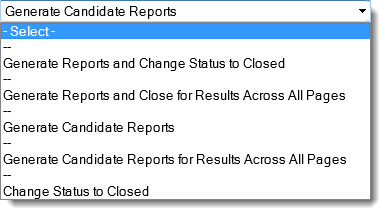
|
If you generated a report, the Report Requests page is displayed, with the candidate report listed at the top of the page.
- Select the desired report link to view the report.
All report requests are listed. Locate the desired report and select the link.
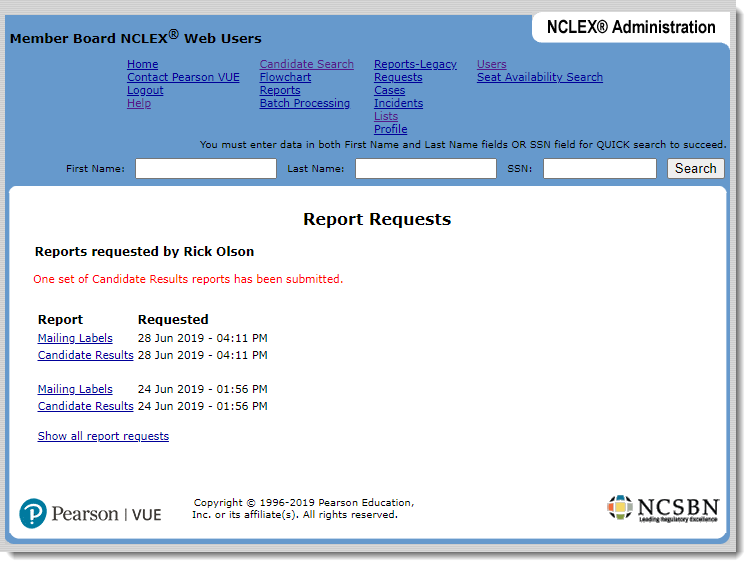
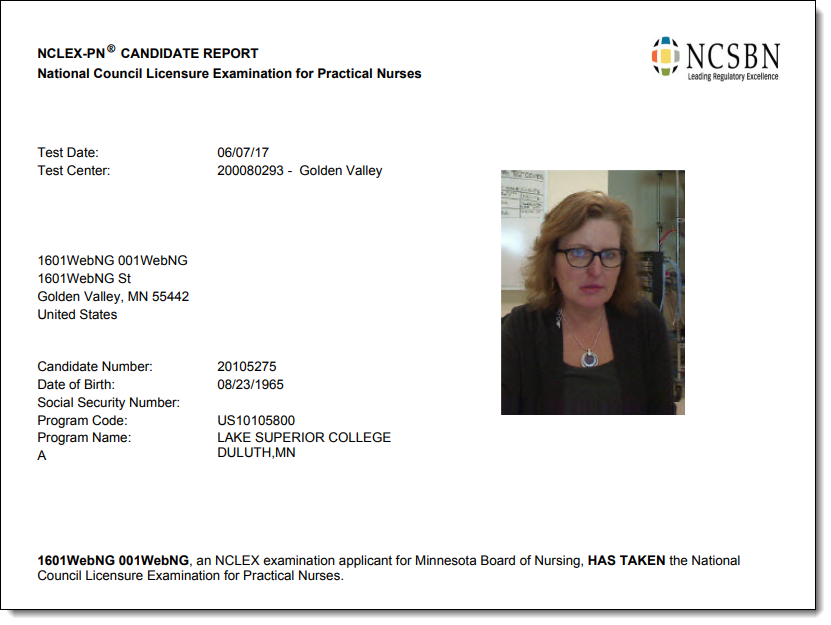
The candidate report opens in a new tab. If multiple candidates were selected, each candidate report is printed on a separate page within the document.
Pearson VUE Proprietary and Confidential