Download video
You can download a session video to have a copy and view it from your own machine/servers. To download the .mp4 video:
- Identify the correct row for the session in the search results.
- Select the ellipse icon in that row and then select Download Video.
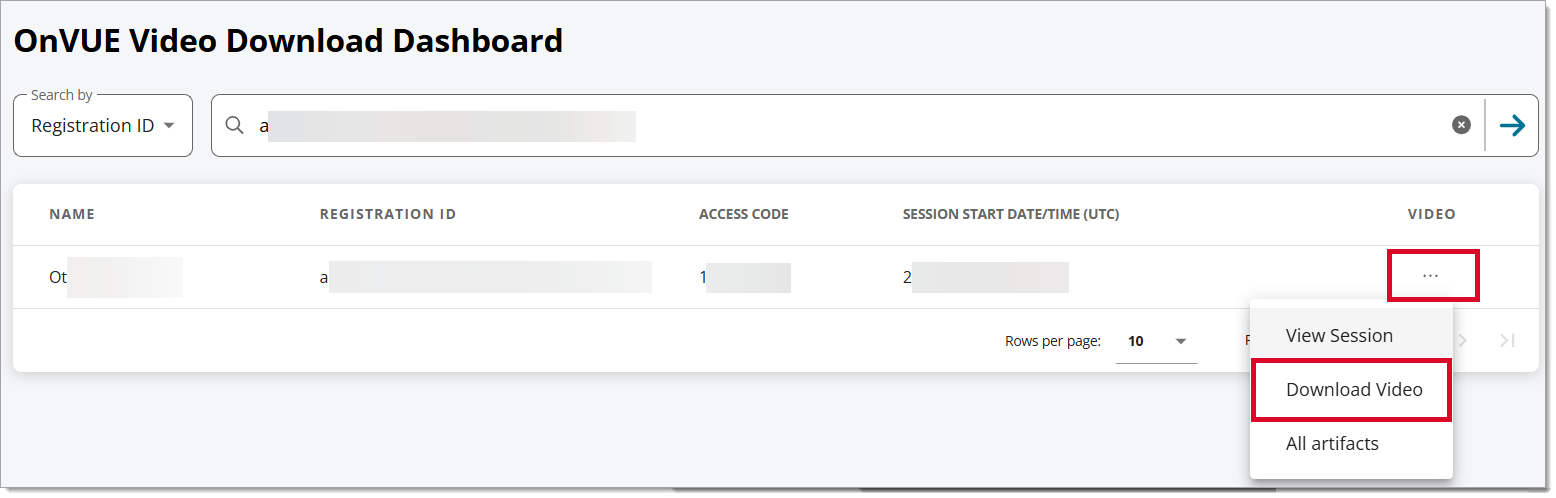
This downloads the .mp4 file from your browser to the default folder on your computer (commonly the Downloads folder).
|
Note The Download link is only available for a limited amount of time for security purposes. If you get an error after clicking Download, perform a new search with the same search criteria and select the Download link immediately. |
The video file name is a a unique system-generated number session ID that creates a file name as follows:
OnVUESessionID.mp4

View the video
Viewing the video depends on the default video viewing software you have installed and set as your default.
If your computer does not already have video viewing software installed, you may need to install software first.
- Open the file from your browser downloads or default Downloads folder.
Your computer will use whatever default video viewing software is installed.
- View the video.
|
Note Video will often start before a candidate has been greeted and started the exam. Candidates may exhibit behavior initially that is not acceptable once they have begun the proctoring process. This includes leaving the room, having prohibited items on their desk, using their phone, etc. |
Pearson VUE Proprietary and Confidential