Change the number of candidates displayed on a roster
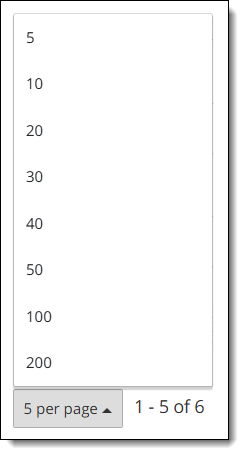
By default, 5 candidates are displayed on a roster. You can change how many candidates are displayed on the roster.
- On the Events dashboard, locate the desired Event in the Events list.
- Select the View button.
- Scroll down to the bottom of the candidate roster list and select on the 5 per page button
 .
. - Select the desired number from the pop-up menu (5, 10, 20, 30, 40, 50, 100, or 200).

Pearson VUE Proprietary and Confidential