Sort candidate roster list
By default, the candidate roster list is sorted alphabetically by Candidate Name with all locked exams listed at the top of the roster and all unlocked exams listed below the locked exams. The Candidate roster may be sorted by Candidate name, Exam, Registration ID, and Exam status.
|
Once you sort the candidate roster by any other column, the locked and unlocked exams are no longer grouped together. If you wish to view the list in the original sort order, return to the Events list and then view the Event again. The sort order from the previous viewing is not retained. |
 Note
Note- On the Events dashboard, locate the desired Event in the Events list.
- Select the Event's View button.
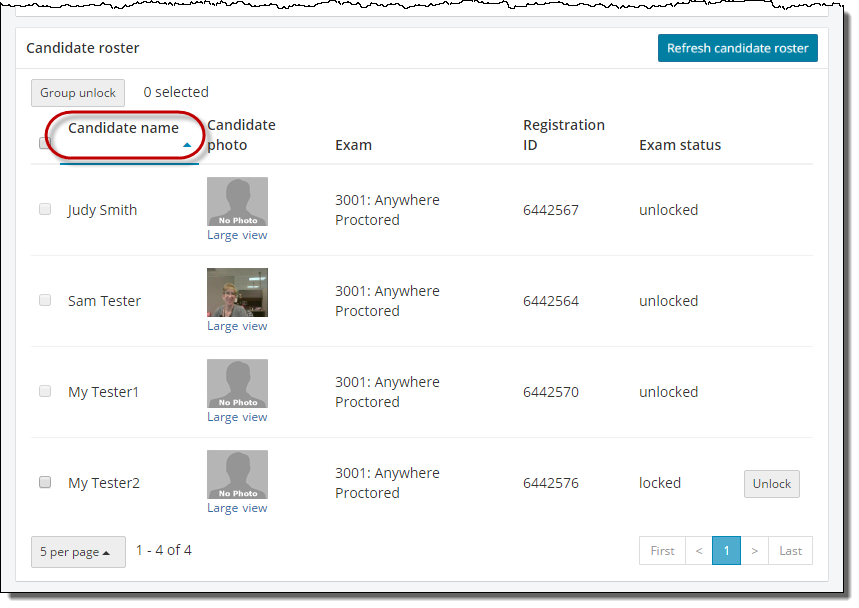
- Select the desired column heading title. The list is now sorted in ascending order and an upward pointing triangle is displayed next to the column heading.

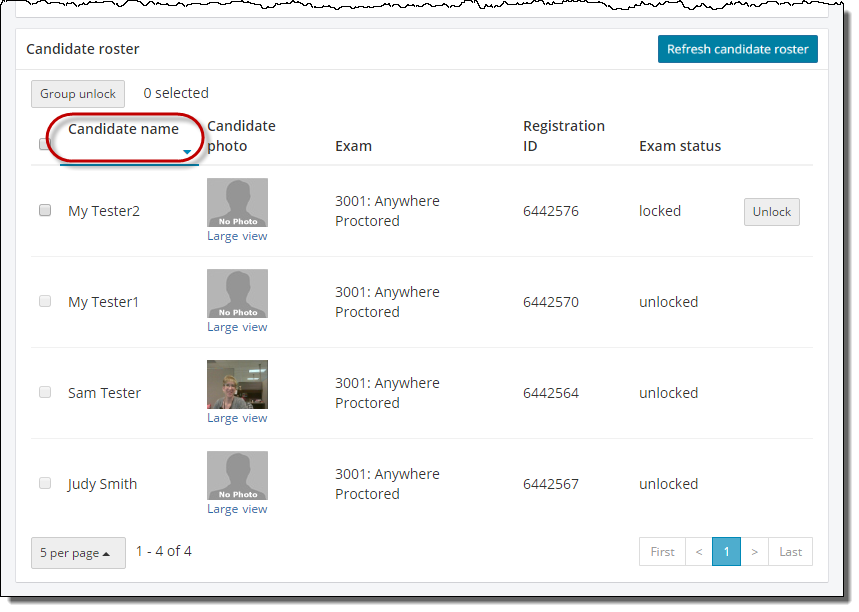
- Select the column heading again and the list is sorted in descending order. A downward pointing triangle is displayed next to the column heading.
|
Once you have sorted the Candidate roster, if you navigate to other pages using the view page buttons, each page retains the sort order by the selected column. |
Pearson VUE Proprietary and Confidential