Unlock candidate exams
When a roster is created, it is empty until a candidate enters the event code during the Client proctored - no appointment required admissions process for the exam. 
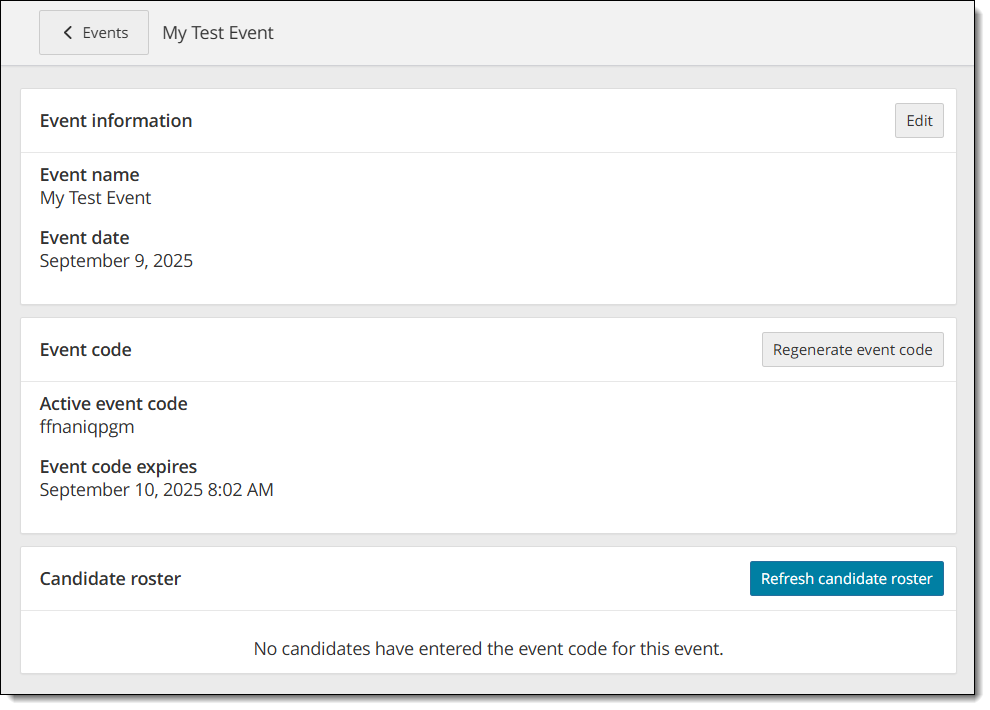
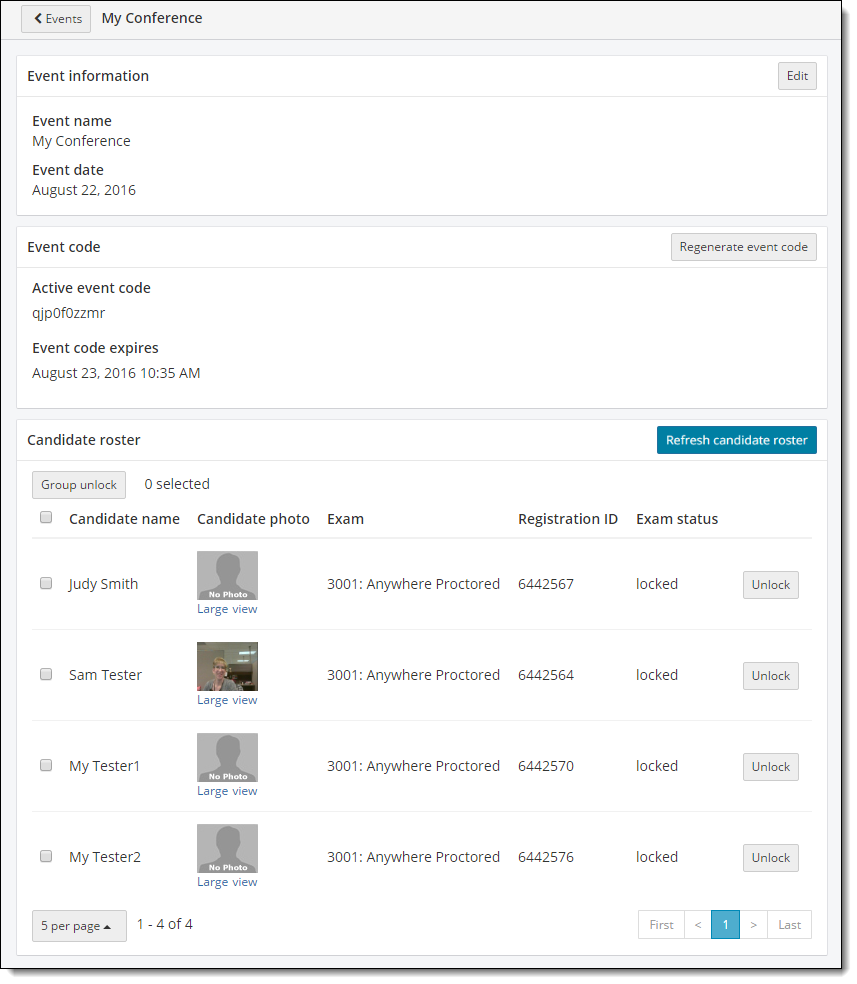
Once candidates have entered event codes, the candidates are listed in alphabetical order by last name on the Candidate roster.
|
The proctor that creates the event must also unlock the exams. Proctors cannot unlock exams in events created by other proctors. |
 Warning
Open the event
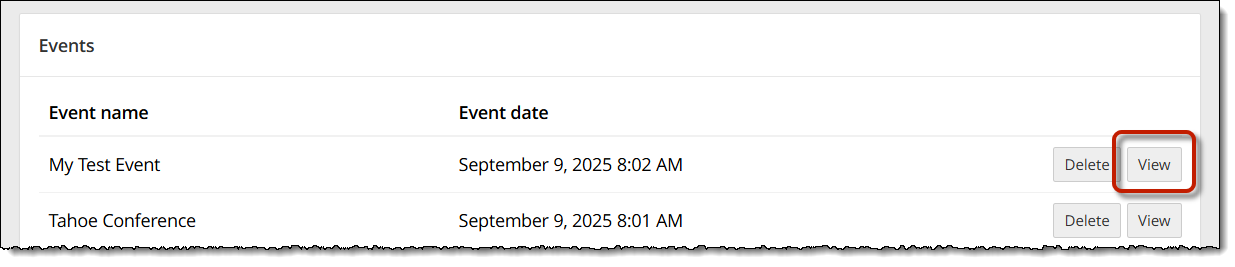
- On the Events dashboard, locate the desired Event in the Events list.
- Select the Event's View button.
- Select the Refresh candidate roster button. A message states the roster has been refreshed.
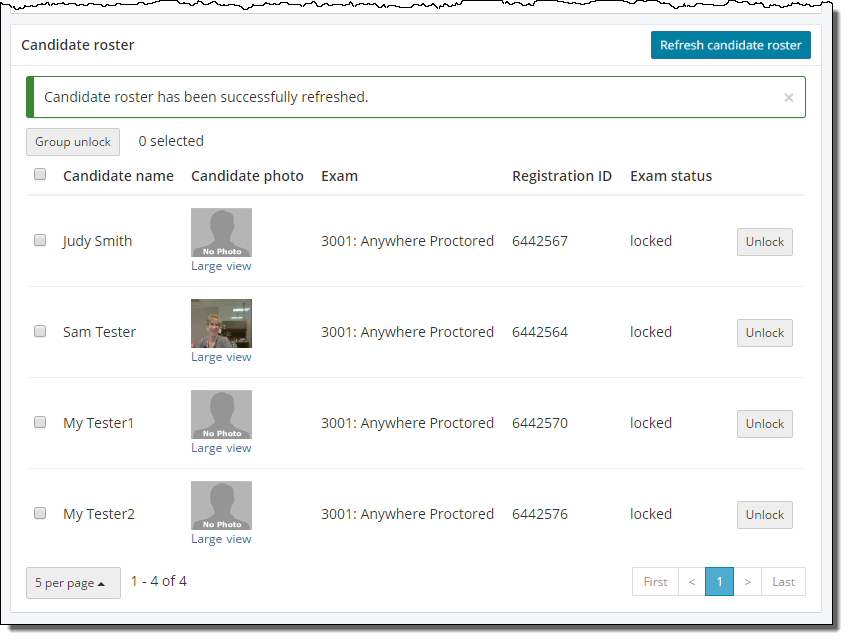
If candidates have entered the event codes, the candidates are listed in alphabetical order on the Candidate roster. All exams at this time are locked.
|
If candidates are beginning their exams at random times throughout the Client proctored - no appointment required event, Proctors must select the Refresh candidate roster button every couple minutes to ensure candidates are not waiting too long to begin their exams. |
 Note
Note|
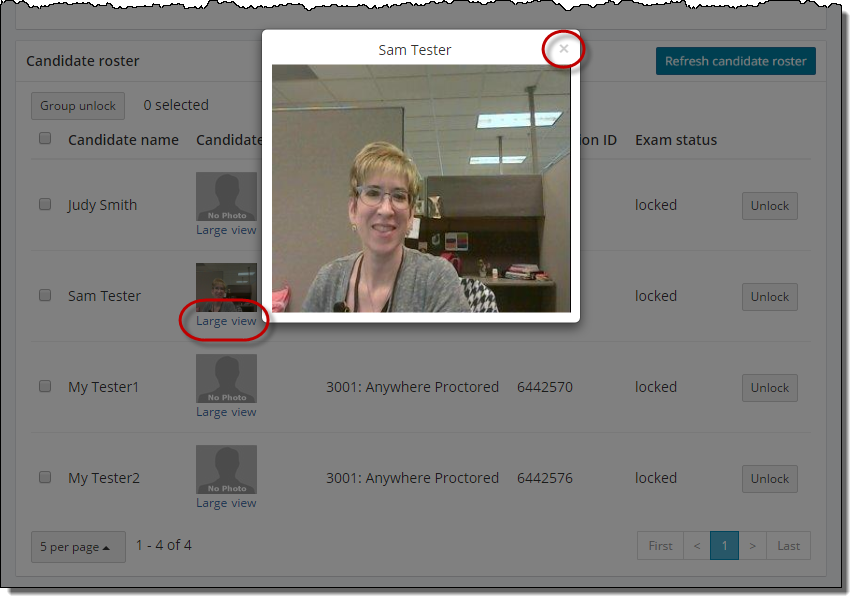
Clients determine if they want to include Photo Capture for their Client proctored - no appointment required events. If photo capture is turned on for the client, candidates are prompted to capture their own photograph as part of the admissions process. The photo displays to the right of the candidate's name on the Candidate roster. A blank avatar appears for clients that have elected to not include photo capture or if the candidate does not capture their own photo during the admissions process. |
To verify a candidate's identity when a candidate photo has been captured, locate the desired candidate in the list and select the Large view link. The photograph of the candidate opens in a larger window. Select the Close button when you are finished viewing the candidate photo.
Change the number of candidates displayed on the candidate roster
|
By default the Candidate roster displays the first 5 candidates that have admitted themselves using the Event code. If you have a large event where you have more than 5 candidates listed on the roster, you can use the page links in the bottom right corner of the page to scroll through the list of candidates waiting to have their exam unlocked.
|

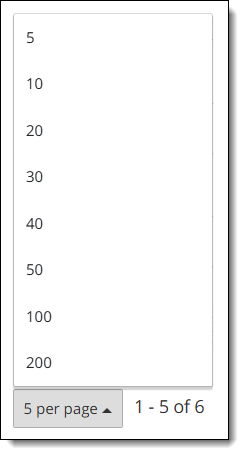
If you do not want to scroll through multiple pages to view all the candidates, you can change the number of candidates that are listed on the page so you do not have to scroll through so many pages.
- Scroll down to the bottom of the candidate roster list and select the 5 per page button
 .
. - Select the desired number from the pop-up menu (5, 10, 20, 30, 40, 50, 100, or 200).
Unlock single candidate exam
Proctors have the ability to unlock candidate exams one at a time from a single, centralized location without moving to the candidate's workstation to unlock the exam.
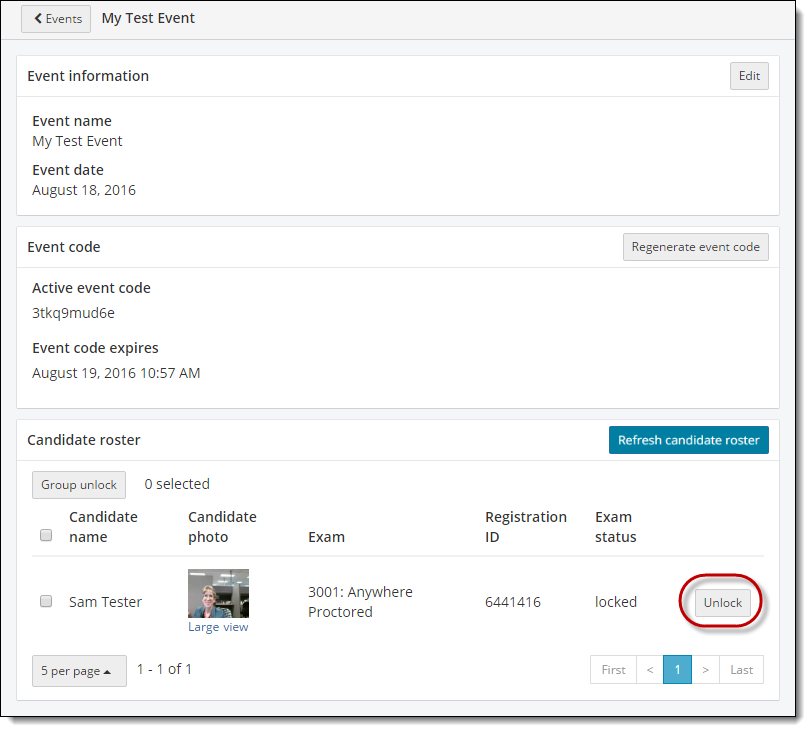
- Locate the desired candidate on the Candidate roster.
- Select the individual Unlock button in the far right column.
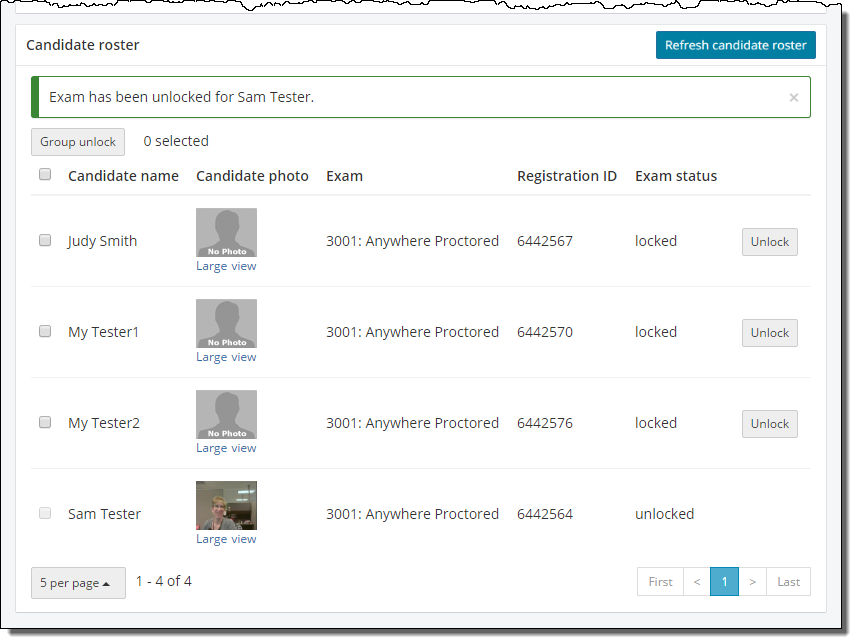
A message states the exam has been unlocked for the selected candidate.
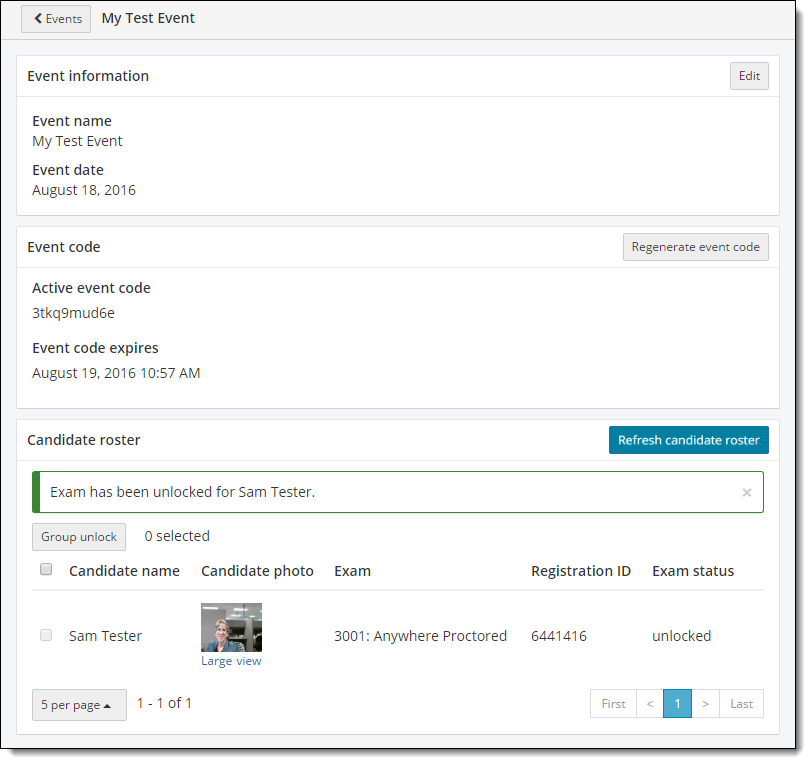
If only one candidate exam was unlocked on a candidate roster, all locked exams are listed at the top of the roster list in alphabetical order. All unlocked exams are listed in alphabetical order at the bottom of the list.
Group unlock candidate exams
Proctors may select all locked exams or individually select exams and use the Group unlock option.
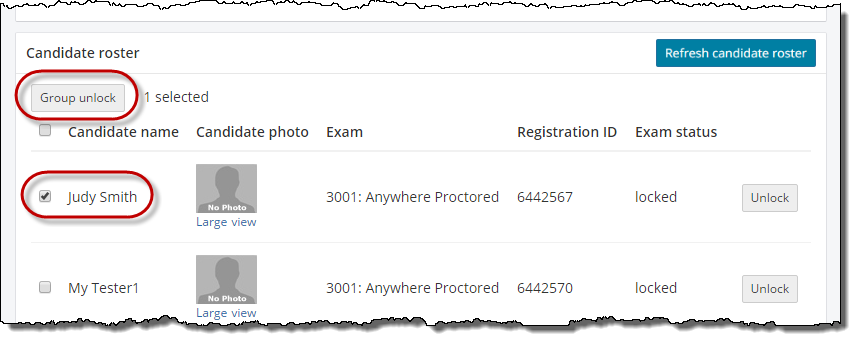
- Select the desired exams on the Candidate roster.
- Select the individual candidate check box for each candidate exam you wish to unlock.
-OR-
- Select the Select All check box next to the Candidate name column heading.
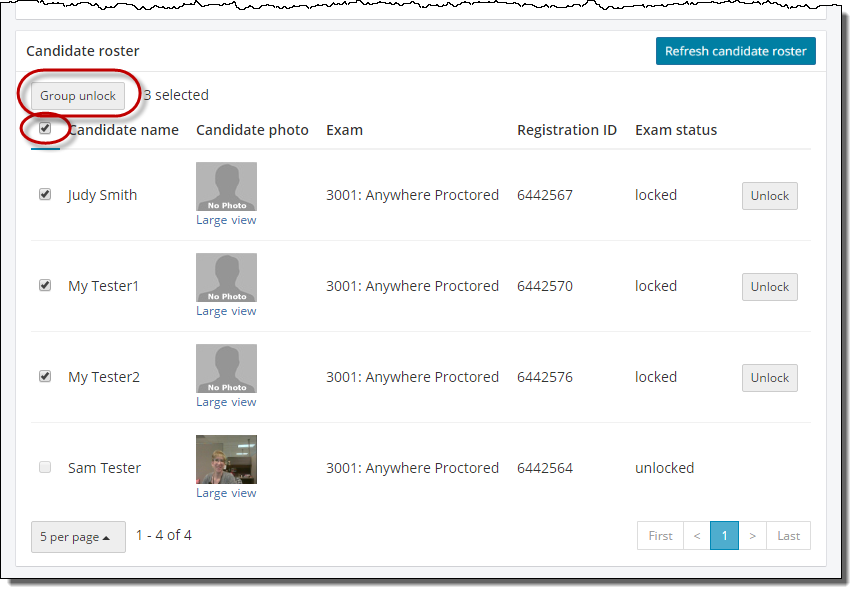
- Select the Group Unlock button.
- Select Yes in the Are you sure you want to unlock this group of candidates drop-down list.
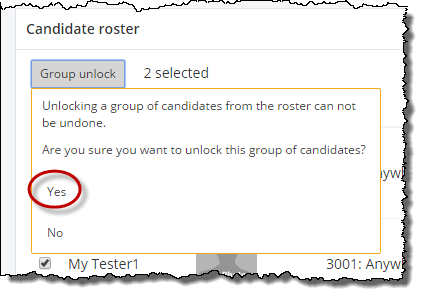
A message states the exams have been unlocked.
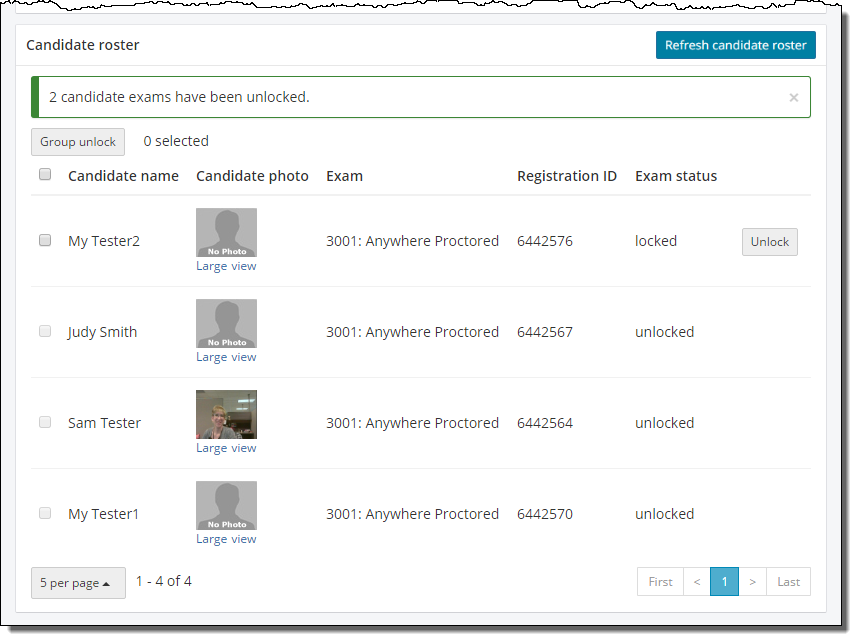
If individual exams were unlocked, all locked exams are listed at the top of the roster list in alphabetical order. All unlocked exams are listed in alphabetical order at the bottom of the list.
Pearson VUE Proprietary and Confidential