Launch Connect User Management application
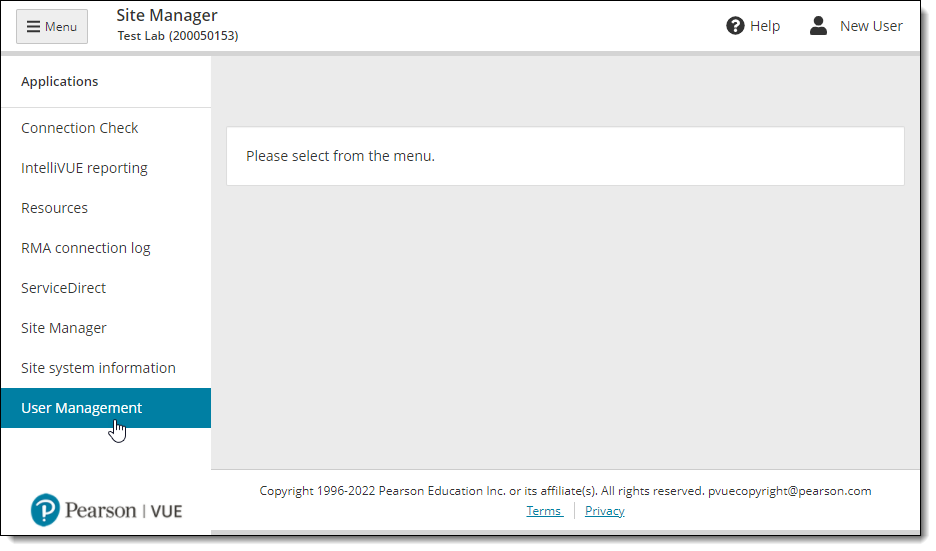
When you launch the Connect portal, a navigation pane appears on the left side of the screen. The navigation pane lists the applications you have access to based on the roles assigned to your user profile.
- If the navigation pane is not displayed on the left side of the page, select the Menu button in the upper left-hand corner of the page.
- Select the User Management menu.

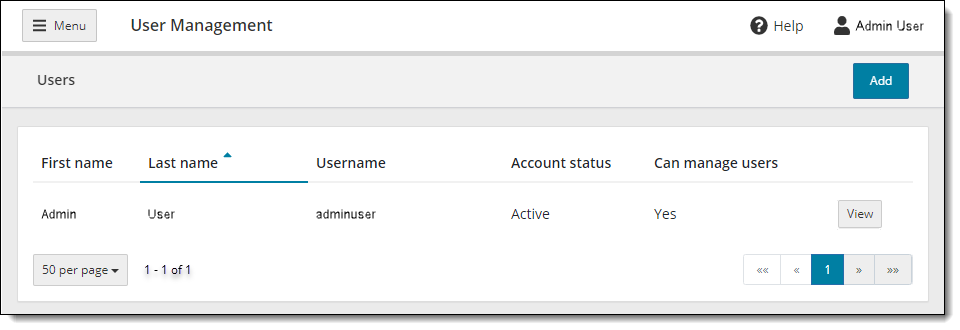
- The Users list is displayed on the page. Select the Menu button in the upper left-hand corner to hide the navigation pane.
Sites without affiliates - standard test centers
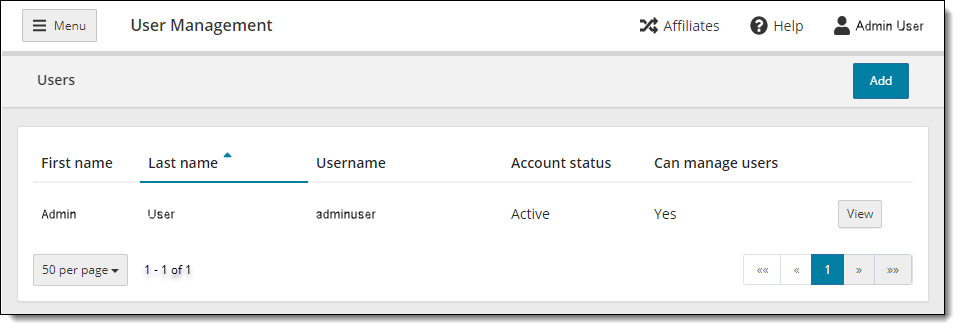
Sites with affiliates
|
If your site is part of a Site Group, see the Work with Affiliate Sites topic for further details on how to navigate between your various sites. See the remaining help topics to understand how to work with the Connect User Management application. |
 Note
NotePearson VUE Proprietary and Confidential