View session
Viewing a session provides access to several features including:
- Additional candidate details
- Video in an online hosted player
- Video events
- Session photos hosted online
- Downloads
Access
The View session feature is only available to those with the role.
To reach the View session feature:
- Search for a session.
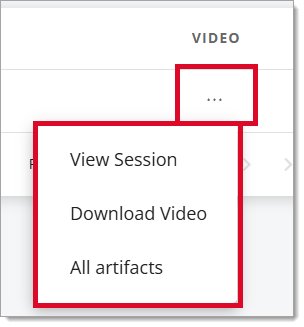
- Select the ellipse in the Video column of the correct session.
- Select View Session from the options.
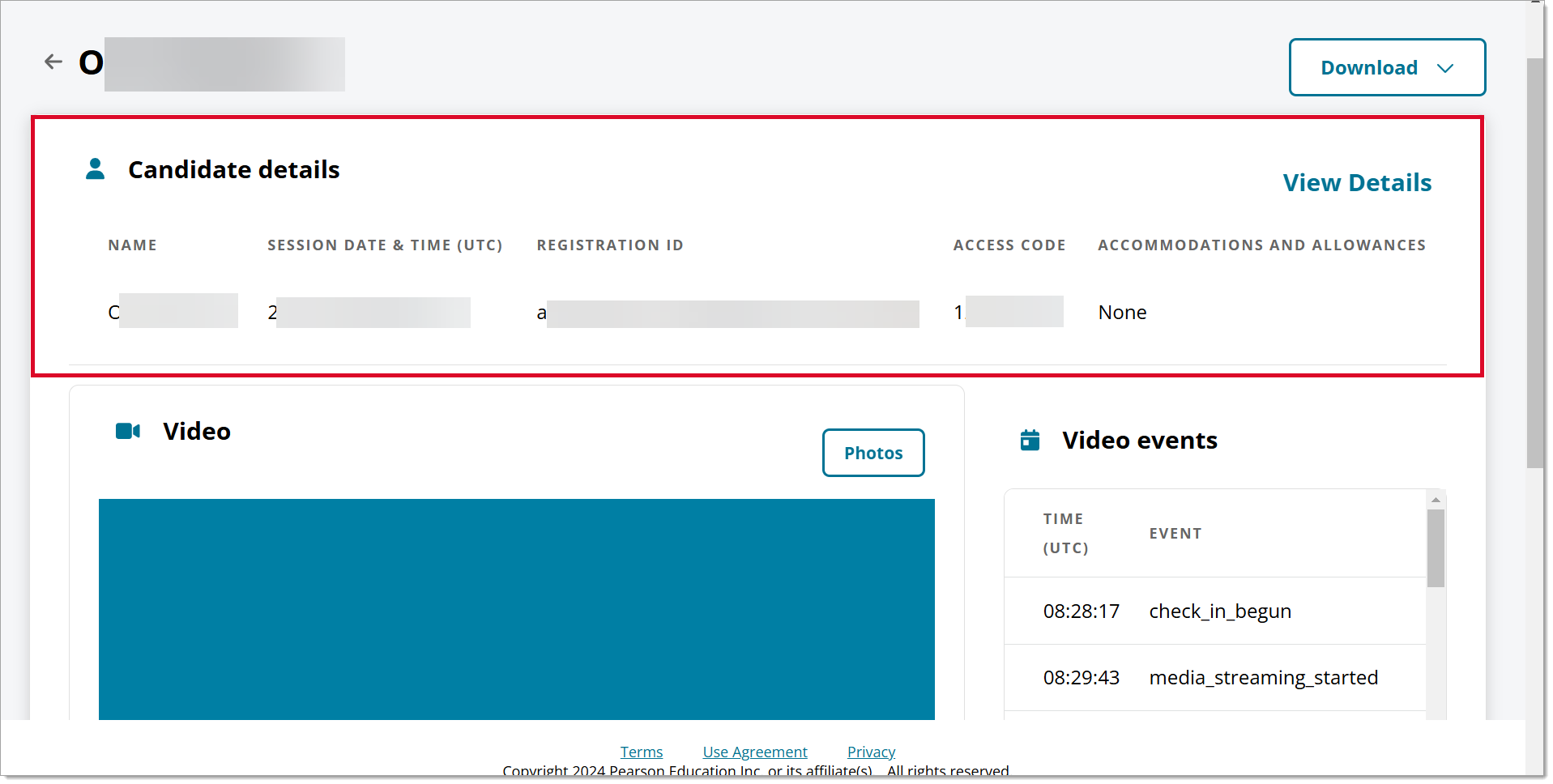
Candidate details
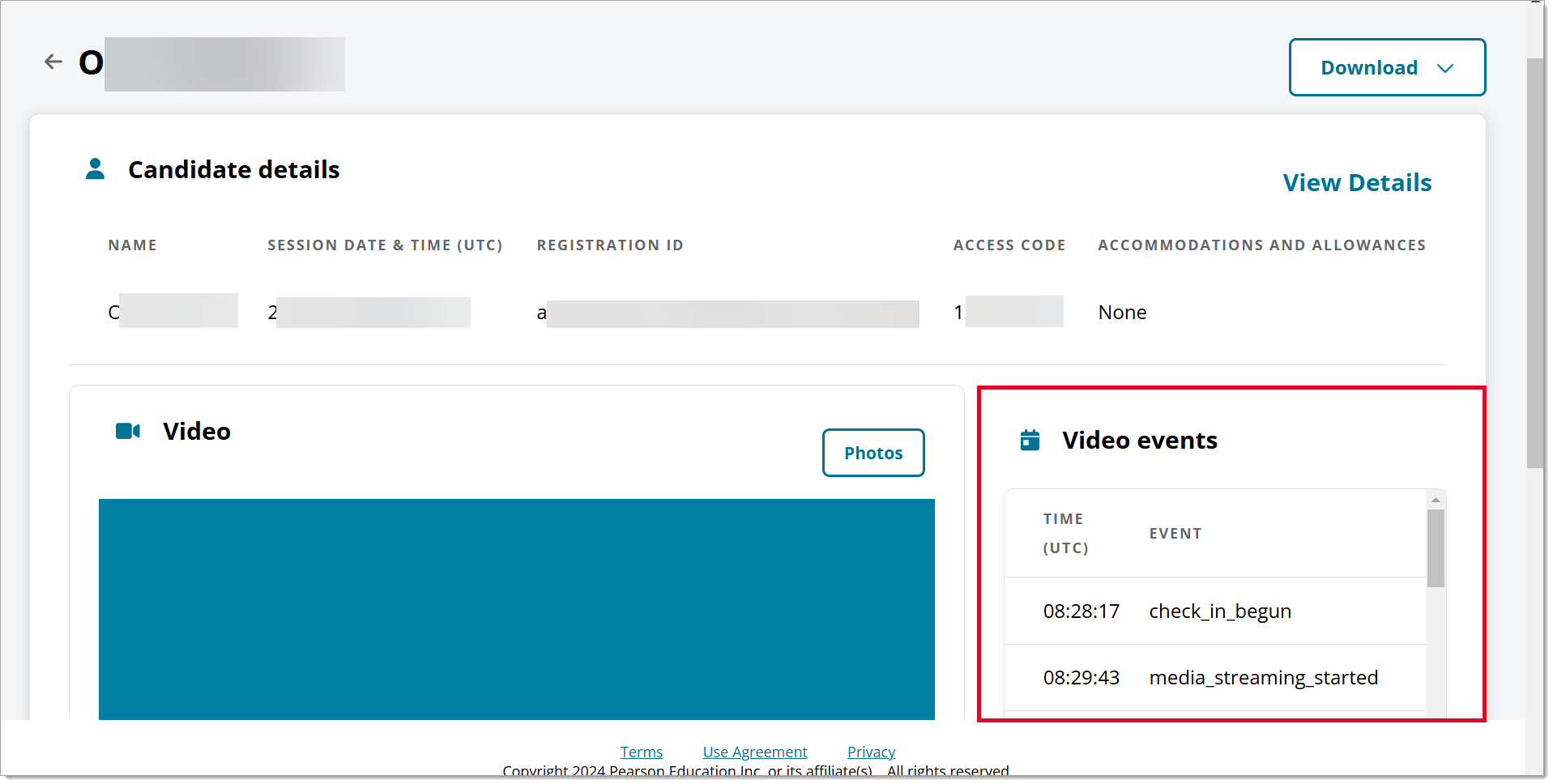
Core candidate details are provided at the top of the screen.
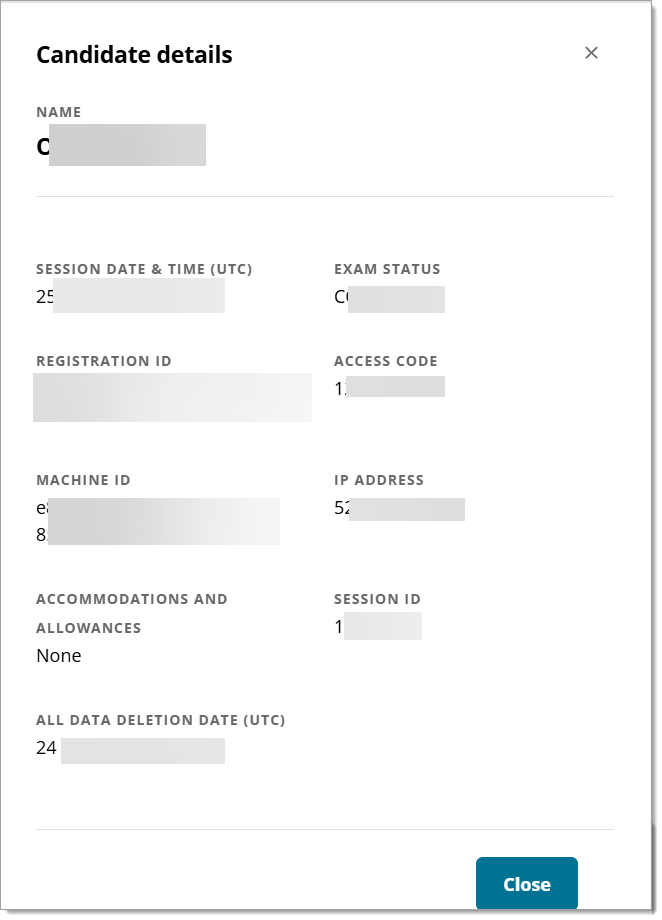
Additional candidate information can be accessed through the View Details link. This link opens a pane that includes the previous core data plus the
- Exam Status
- Machine ID
- IP Address
- All Data Deletion Date (UTC)
Video - online hosted player
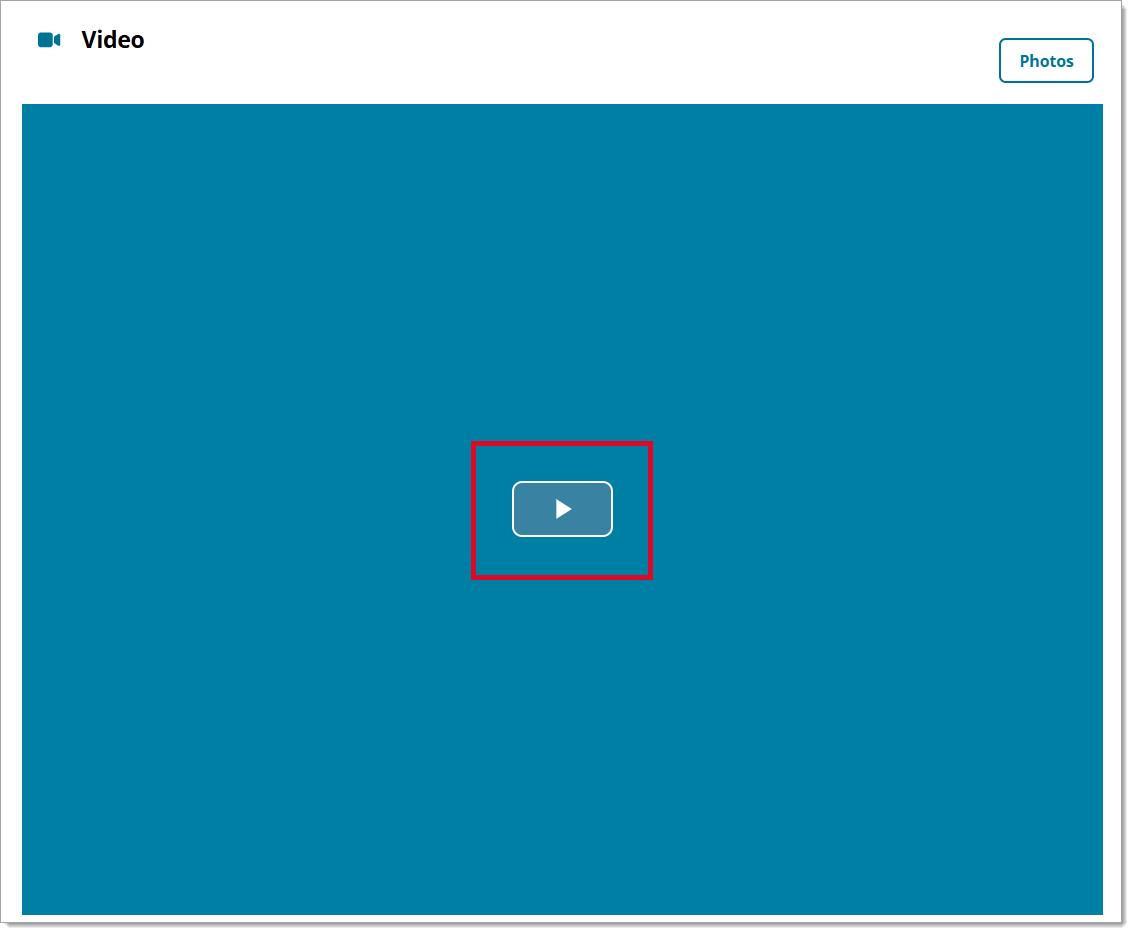
You can view the session video without downloading it from this View Session page. Simply select the play icon in the video area.
This can be useful if you do not want to
- Deal with government and company data retention policies for videos downloaded onto your own server/computer
- Take up space on your own server/computer
- Reference the video offline
Viewing tools
- Review the video frame by frame using the Step Forward button at the bottom left of the video.

- Review the video at different speeds using the Playback Rate at the bottom right of the video.

Video events
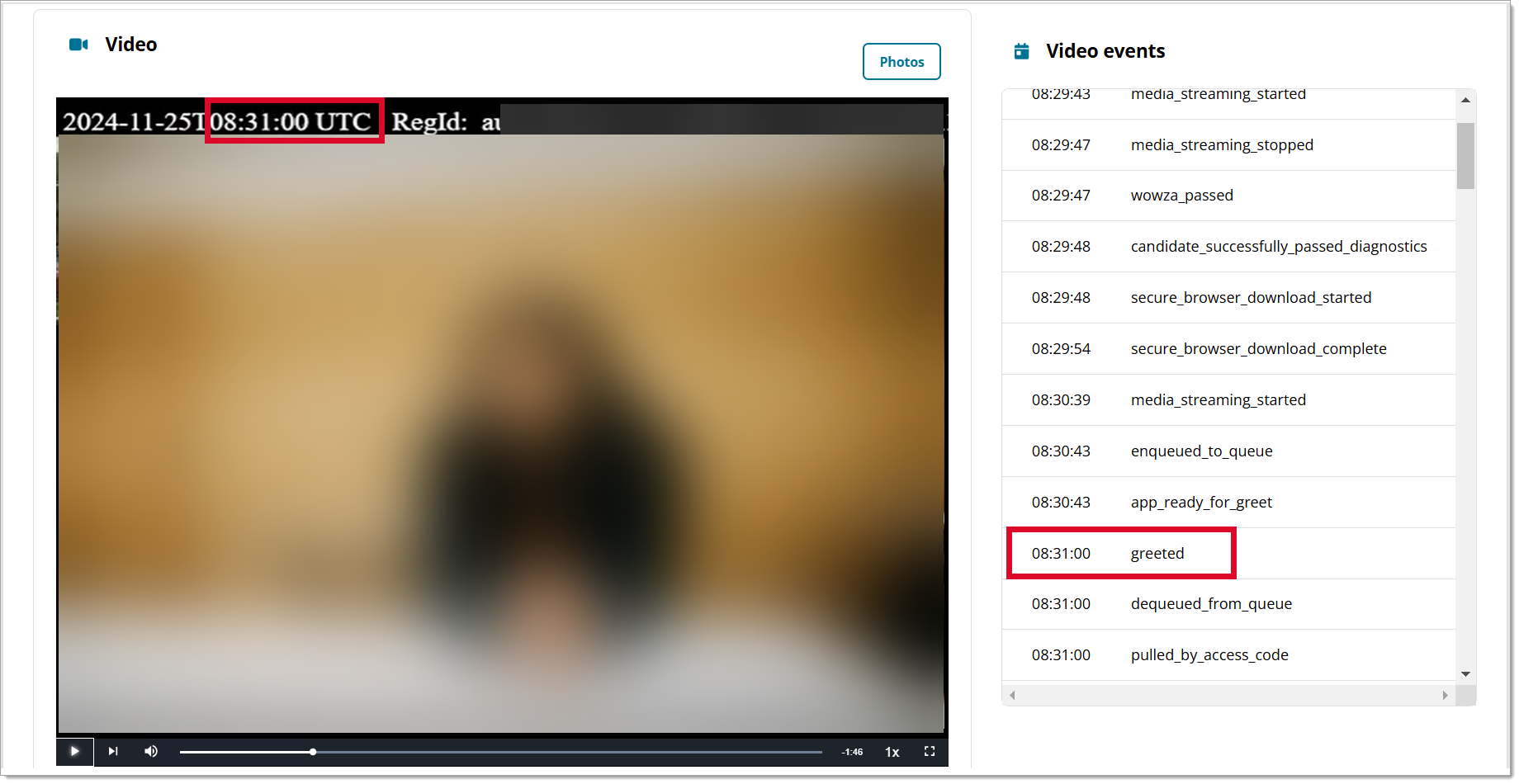
The video events and time stamps for each event are listed to the right of the video player. This allows you to quickly browse for an event without having to download the entire file.
The time listed for each video event corresponds to the time stamp on the video. To download a full list of all potential video events, select this list of video events.
Photos - hosted online
Similarly to the online hosted video, the session photos are also hosted online so you can view them quickly, all at once, and without having to download them.
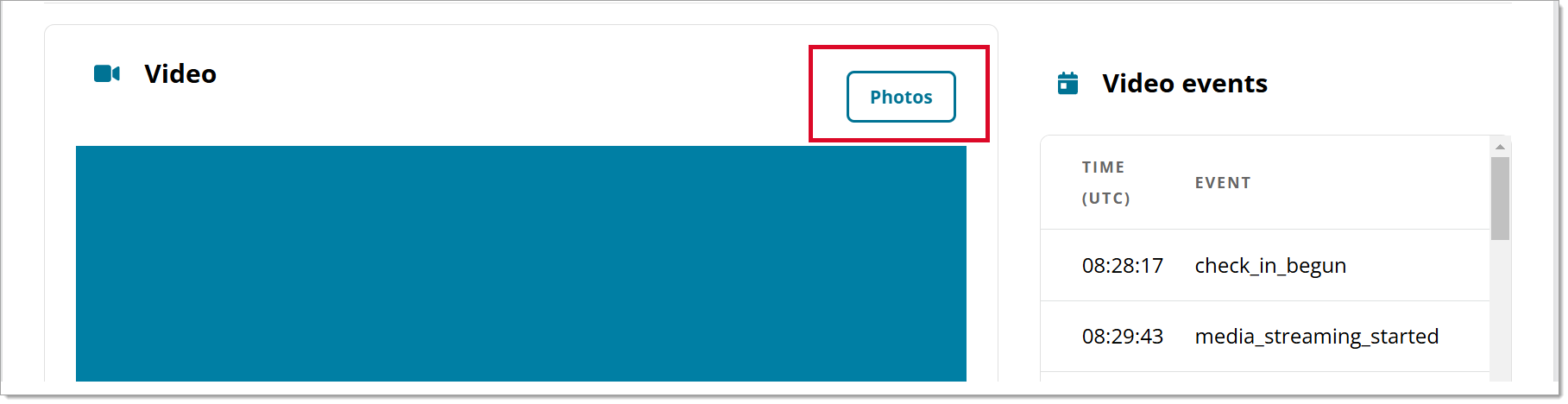
Select the Photos button to view the session photos.
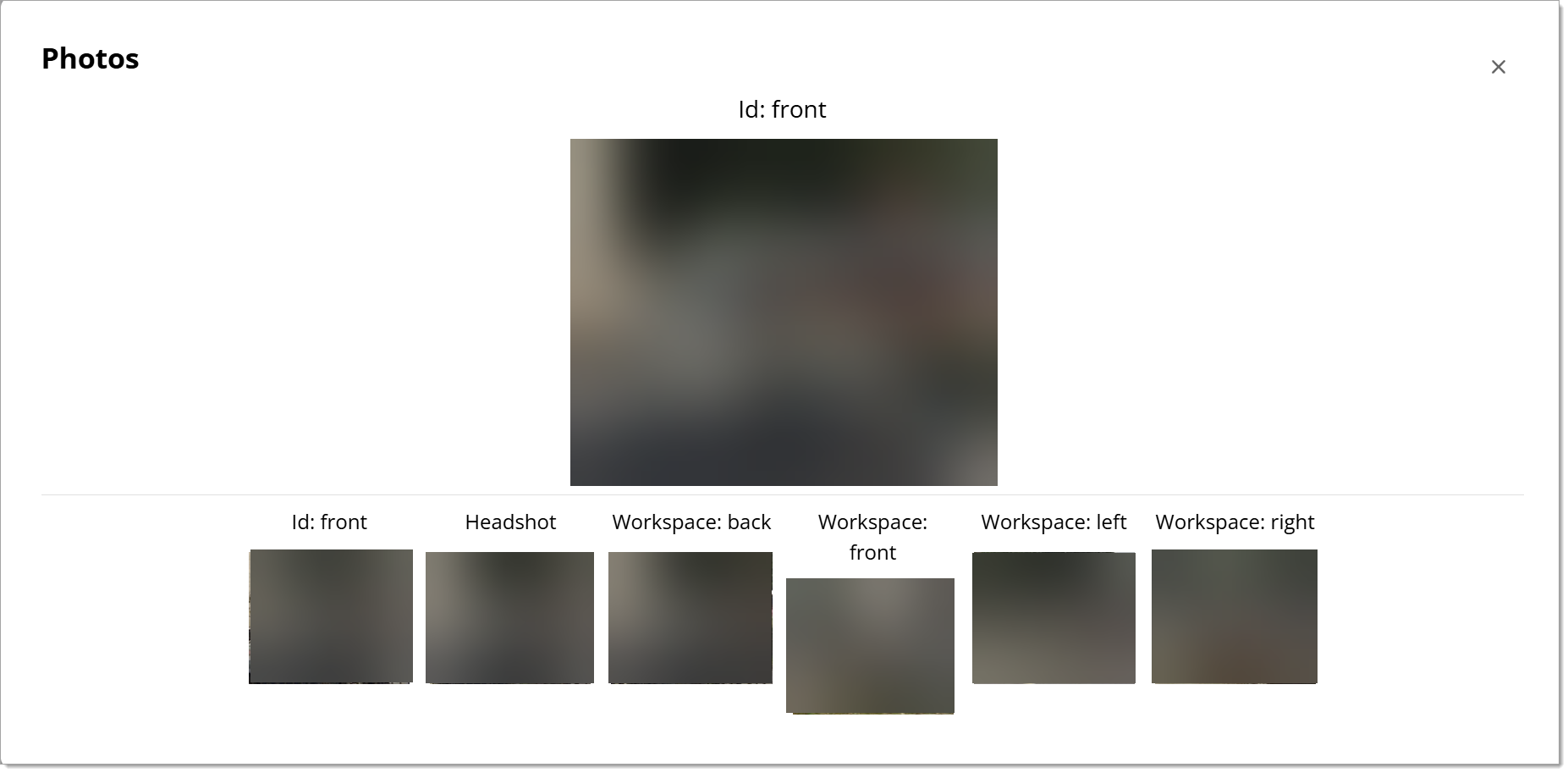
Select a photo thumbnail to see the larger version. The photos available include:
- Candidate's ID
- Candidate's headshot (face)
- Candidate's workspace (front, back, left, and right)
Downloads
You still have the option to download the session video and all session artifacts from this screen.
Use the Download dropdown to download either the session video or all artifacts.

This downloads the file(s) from your browser to the default folder on your computer (commonly the Downloads folder). The artifacts will be grouped together in a .zip file.
Return to search
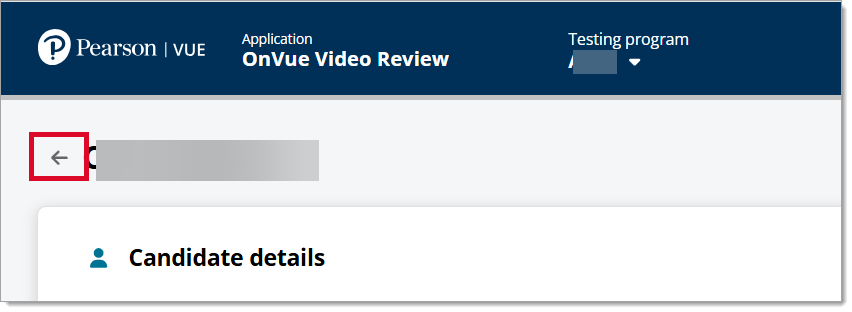
To look for another session, return to the Search page using the back button next to the candidate's name in the upper left corner of the screen.
Pearson VUE Proprietary and Confidential