Proctor event dashboard
The event dashboard is used by proctors to manage all their Client proctored - no appointment required events. Events are used to unlock candidate exams at a specific Client proctored - no appointment required event. From the dashboard proctors may view their proctor information, including which exam authorizations they have been assigned, create a new event, and view a list of existing events.
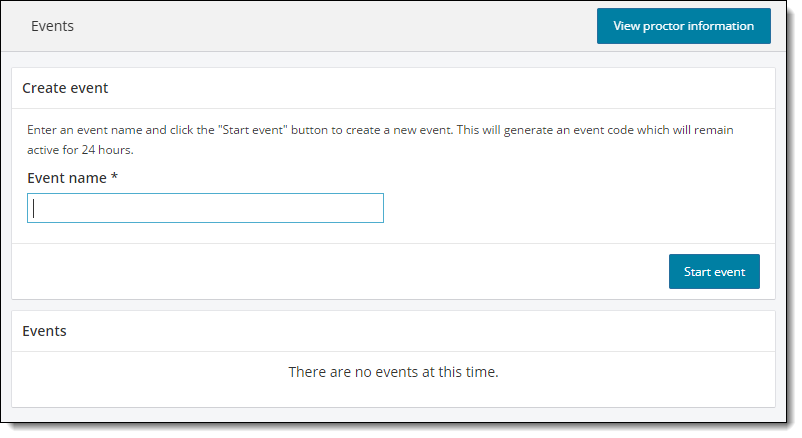
- When you first access the Proctoring application the event dashboard is empty.

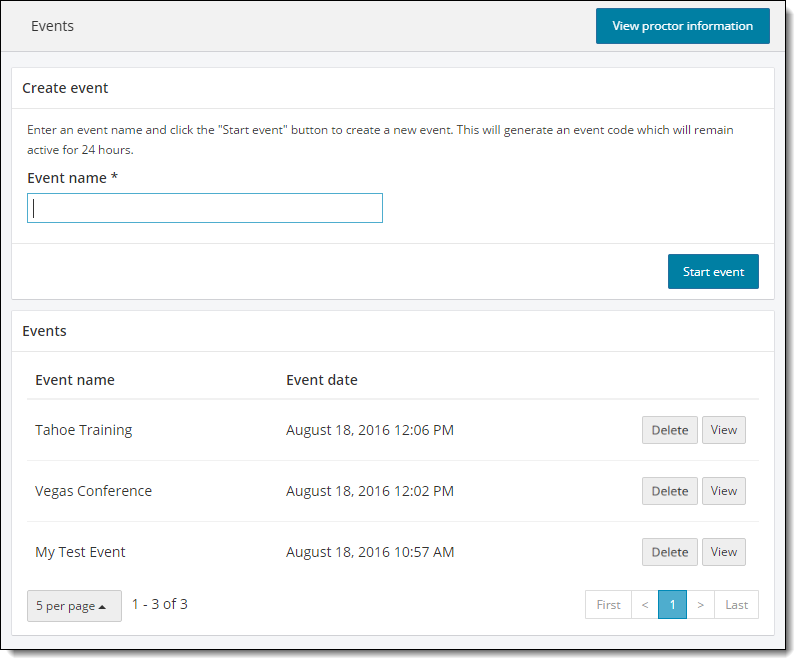
- Once you have created multiple events, the events are listed by Event date. The events are listed in most recently created to the oldest event created order.
View proctor information
- Select the View proctor information button in the upper right-hand corner.
See the View Proctor Information topic for details.
Create an event
- See the Create an Event topic for details.
Sort Events
- To sort the list by event, select the Event name header. The list is sorted by event name alphabetically in ascending order. An upward facing triangle is displayed to the right of the column header.
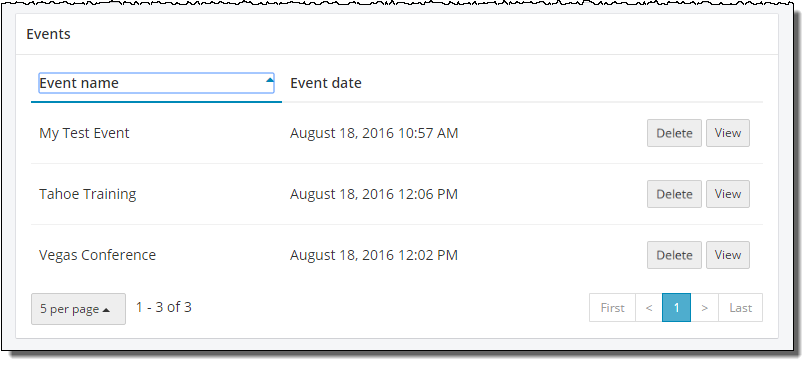
- Select the Event name header again and the list is sorted alphabetically in descending order. A downward facing triangle is displayed to the right of the column header.
- To sort the list by event date, select the Event date header. The list is sorted in oldest to newest order by date.
- Select the Event date header again and the list is sorted in newest to oldest order.
Change the number of events displayed in the list
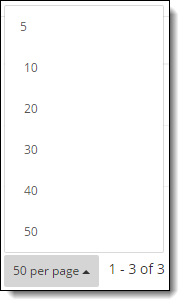
By default, 5 events are displayed on a page in the events list. You can change the number of events that are displayed on a page if you have a large number of events.
- Scroll down to the bottom of the events list and select the 5 per page button
 .
. - Select the desired number from the pop-up menu (5, 10, 20, 30, 40, or 50).
Scroll through pages of events
Use the view page buttons in the lower right corner of the Events dashboard to scroll through the pages of events.
- Select the page numbers to display the events 5 at a time.

- Select the First link to move to the first page.
- Select the Last link to move to the last page.
Pearson VUE Proprietary and Confidential